
As a fashion content creator, every photo and video you capture is more than just a file—it’s your work, your brand, and a connection to your audience. Whether you're shooting outfits with a DSLR, mirrorless camera, or smartphone, you probably store your content on SD cards. But what happens when your SD card suddenly isn’t recognized?
When your SD card isn’t detected, it can feel like your entire shoot is gone. Don’t panic—this issue is usually fixable. Most of the time, you can recover both your card and your lost photos.
This guide walks you through step-by-step solutions to fix an undetectable SD card and recover your lost photos. Let’s get started.
Why Your SD Card Isn’t Showing Up
Before jumping into solutions, it helps to know why your card isn’t being recognized. Here are common causes:
- Physical Damage: Bent or dirty connectors can stop your device from reading the card.
- File System Corruption: Sudden removal or formatting errors can corrupt your card.
- Driver Issues: On computers, outdated or missing drivers can block SD card access.
- Viruses or Malware: Harmful software can hide or damage your files.
- Incompatible File System: Some devices may not support the SD card format, like exFAT in older phones or cameras.
How to Fix “SD Card Not Detected”
Here are a few methods to help you get your SD card working again. Start from the top and move through each step until the issue is fixed.
1. Check the Physical Connection
Sometimes the problem is as simple as a bad connection. Here's what to do:
- Take the SD card out of your camera, phone, or card reader.
- Gently clean the metal contacts using a soft, dry cloth.
- Reinsert the card and check if it’s detected.
- If that doesn’t work, try a different card reader or USB port.
- You can also test the card in another device, like a different camera or laptop.
2. Use Disk Management on Windows
If your computer sees the card but doesn’t show it in File Explorer, try this:
- Press Win + X and choose Disk Management.
- Look for your SD card in the list of drives.
- If it says “unallocated” or doesn’t have a drive letter:
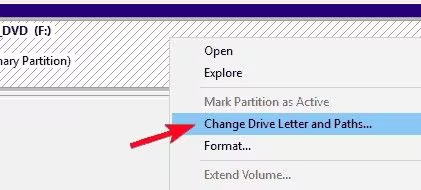
- Right-click the SD card.
- Select Change Drive Letter and Paths.
- Click Add and assign a new letter to the card.
3. Update or Reinstall Your Drivers
Outdated drivers can stop your computer from reading the card. Here’s how to update them:
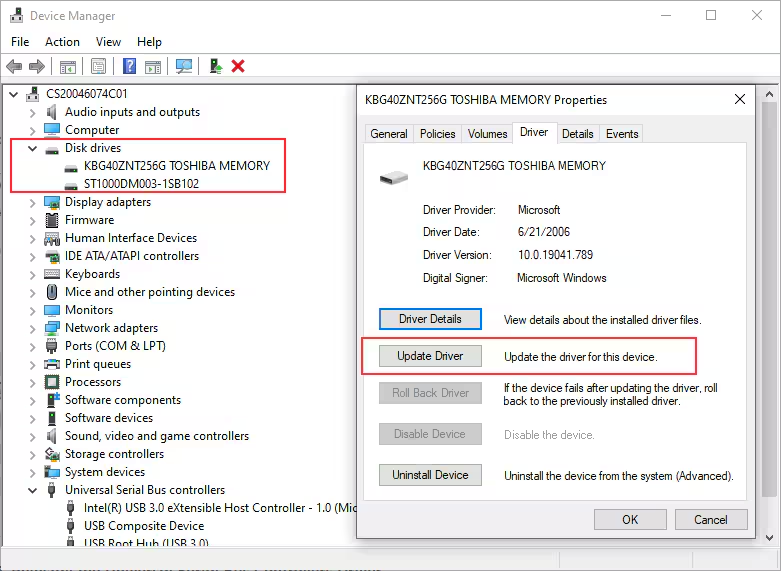
- Press Win + X and open Device Manager.
- Expand Disk Drives or Universal Serial Bus controllers.
- Right-click your SD card or reader and choose Update driver.
- If updating doesn’t help, uninstall the driver, then restart your computer. Windows will reinstall the driver automatically.
How to Recover Lost Photos from Your SD Card
Once your SD card is showing up again, the next step is to check if your photos are still there. If some are missing, don’t panic. There’s a good chance you can get them back. There are a number of different SD card recovery methods available online, but this one is the easiest:
Before You Start Recovery
Follow these rules to avoid losing your files for good:
- Stop using the card immediately. Don’t take new photos or save anything else to it. This can overwrite deleted files.
- Avoid reformatting, unless a recovery tool recommends it.
- Use recovery tools in read-only mode to avoid changing the card’s data.
Method 1: Restore from a Cloud Backup
If you back up your files to the cloud, you may already have copies of your lost photos. Here’s how to check:
- Open Google Photos, iCloud, or your preferred backup service.
- Look in folders like Trash, Recently Deleted, or Archive.
- Select the photos you need and download or restore them to your device.
Method 01: Recover from Backup
If you’ve enabled cloud backups (e.g., Google Photos, iCloud, OneDrive) on your device, it will automatically back up your photos and other stored files. There are several reliable photo recovery software you can use to restore your photos such as Stellar Photo Recovery, Recuva, PhotoRec, etc.
Key Features of a Photo Recovery Software:
- Multiple File Format Support: It should support recovery of photos of multiple file formats, including JPG, PNG, TIFF, BMP, GIF, etc.
- Quick Scan and Deep Scan Modes: Your photo recovery software must be able to perform both Quick Scanning and Deep Scanning. Quick Scan is for easy recovery of recently lost files, while Deep Scan is for a thorough sector-by-sector scan to find lost or fragmented files.
- Preview Functionality: Check if you are able to preview the recovered photos before saving them on your device.
- User-Friendly Interface: It is very important that your software has a simple layout with step-by-step guidance.
Steps to recover deleted photos from the SD Card (using Stellar Photo Recovery Software)
Step 1: Download and install the Stellar Photo Recovery software from its official site. Launch the software and from the homepage, select Photos and click Next.
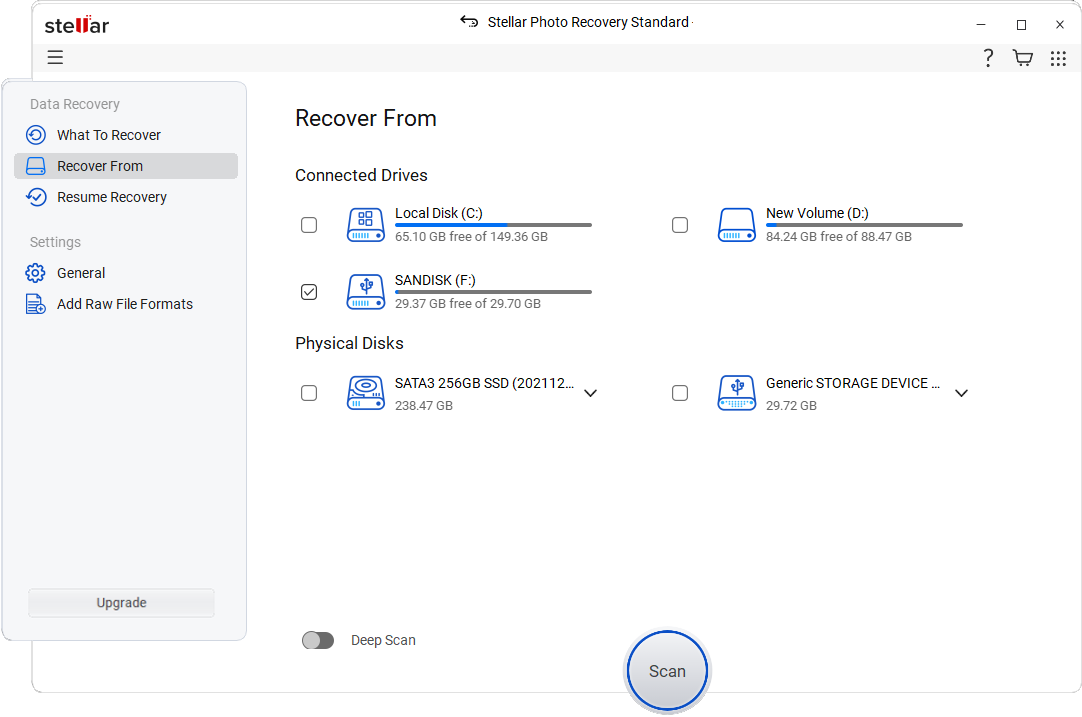
Step 2: Now, choose your SD card from the “Recover From” window and click Scan to initiate the scanning process.
Step 3: Preview recoverable files, select the photo you want to restore and click the Recover button to save it back to your device.
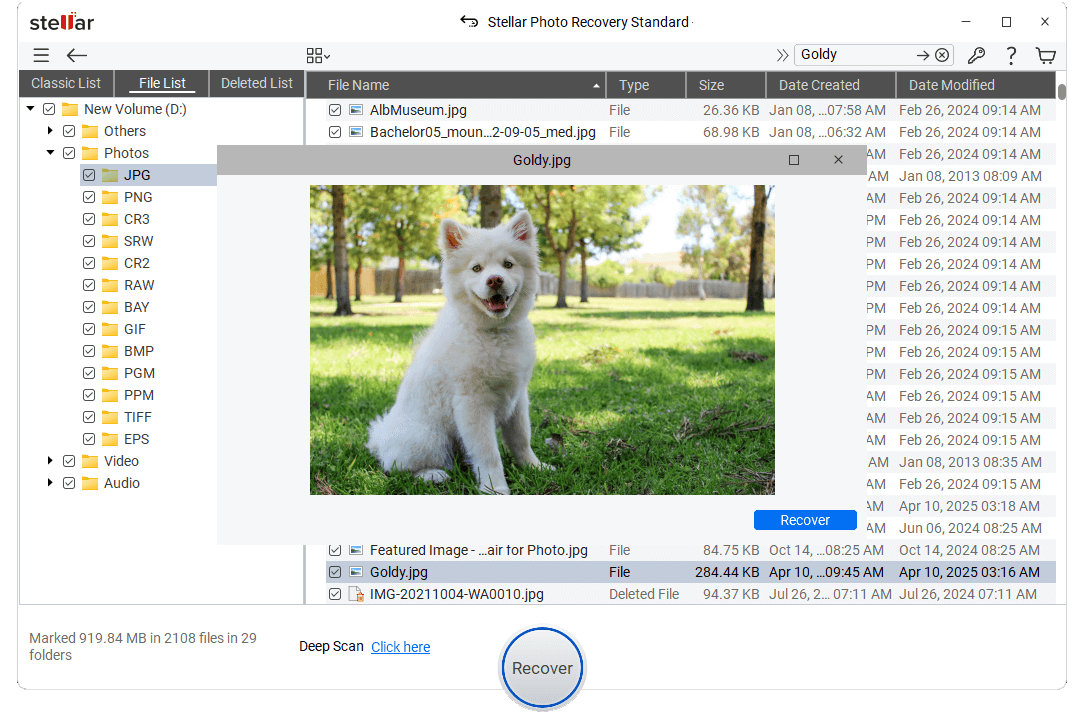
Note: Save recovered photos to a different location (not on the SD card).
How to Avoid SD Card Issues in the Future
As a fashion content creator, your visuals are your brand. Losing them can set you back, so take steps to protect your files before problems happen.
Here’s how to keep your SD cards working smoothly:
- Always eject the SD card properly. Don’t just pull it out—use the “Eject” option on your computer or safely remove it from your camera.
- Leave some space on your card. Avoid filling it to 100%. A nearly full card is more likely to get corrupted.
- Back up your files regularly. Use cloud storage (like Google Drive or iCloud) or an external hard drive to store copies of your shoots.
- Invest in reliable SD cards. Stick to trusted brands like SanDisk, Lexar, or Samsung. Cheap or unbranded cards often fail faster.
- Scan your cards for viruses. Use antivirus software to check your card after transferring files, especially if you use public or shared computers.
Final Thoughts
Your photos are your portfolio, your story, and your connection to your audience. If your SD card suddenly stops working, it can feel like a disaster—but you’re not powerless.
This guide showed how to:
- Fix a card that isn’t being detected.
- Recover lost photos using backups or recovery tools.
- Prevent future problems with simple habits and smart choices.
As long as your card isn’t physically damaged, there’s a good chance you can get your content back and keep creating without losing your momentum.
Leave a Reply